
In today’s connected world, almost everything relies on Wi-Fi—from working remotely to streaming movies, managing smart devices, and handling sensitive business data. But with convenience comes risk. Unauthorized access to your network can lead to data breaches, slow internet, or even ransomware attacks. This is where a network security key becomes your first line of defense.
But how does it work, and how can you make sure your network stays safe? In this guide, I’ll walk you through the essentials, share practical tips, and provide a real-life case study to help you understand its importance in everyday digital life.
Content
What is a Network Security Key?
A network security key is essentially a password or code used to protect your Wi-Fi or hotspot from unauthorized access. It ensures that only devices you authorize can connect to your network. Think of it as the digital key to your front door—without it, anyone could walk in and access your private information.
Unlike a simple Wi-Fi password, this key is often tied to encryption protocols like WPA2 or WPA3, which scramble your data to make it unreadable to outsiders.
Why It Matters
Without a strong network key, anyone nearby can potentially use your internet, access shared files, or even inject malware into connected devices. This makes it critical for both home users and businesses.
Types of Network Security Keys
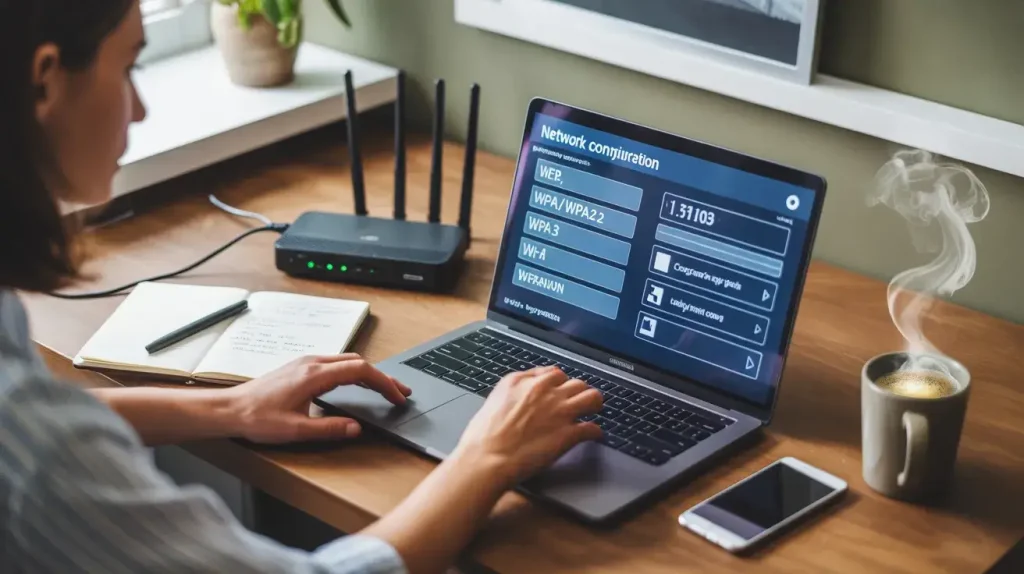
Network security keys vary depending on the type of encryption your network uses. The most common types include:
- WEP (Wired Equivalent Privacy): An older standard, now considered insecure.
- WPA/WPA2 (Wi-Fi Protected Access): Modern standards with stronger encryption.
- WPA3: The latest protocol offering even better security for personal and enterprise networks.
You may also encounter router-generated keys versus custom keys. Router-generated keys are automatically assigned when you set up a new device, while custom keys let you create something memorable yet secure.
How to Find Your Network Security Key
Whether you’re on a home Wi-Fi or using a mobile hotspot, knowing your network key is essential. Here’s how to locate it:
1. On Windows
- Open the Network & Internet settings.
- Go to Wi-Fi properties and click Show characters.
- Your network key will appear under the security settings.
2. On Mac
- Open Keychain Access.
- Search for your Wi-Fi network name and select Show password.
- Enter your system password to reveal the network key.
3. On Mobile Devices
- Android: Check under Wi-Fi settings → Saved networks → Security key.
- iOS: Usually managed through iCloud Keychain or router app.
4. Router Settings
- Access your router via its IP address in a browser.
- Login and navigate to Wireless / Security.
- The network key will be listed there.
Tip: Always note it down somewhere safe, especially if you use it for multiple devices.
How a Network Key Works
A network key is more than just a password. Here’s a simplified view of how it functions:
- Encryption: The key encrypts the data transmitted between your device and the network. Even if someone intercepts the data, it’s unreadable without the key.
- Authentication: The key acts as a checkpoint. Only devices with the correct key can join the network.
- Access Control: It prevents unauthorized users from using your bandwidth or accessing connected devices.
This combination of encryption and authentication ensures your network stays private and secure.
Best Practices for Using a Network Key
A network key is only effective if used properly. Here are some practical tips:
- Use Strong Keys: Combine uppercase, lowercase, numbers, and special characters.
- Change Keys Regularly: Update your key every few months to reduce risk.
- Use WPA2/WPA3: Avoid outdated protocols like WEP.
- Limit Sharing: Only provide the key to trusted users and devices.
- Enable Guest Networks: If guests need access, create a separate network to protect your main devices.
These practices ensure that your network remains secure and your devices stay protected.
Troubleshooting Common Network Security Key Issues
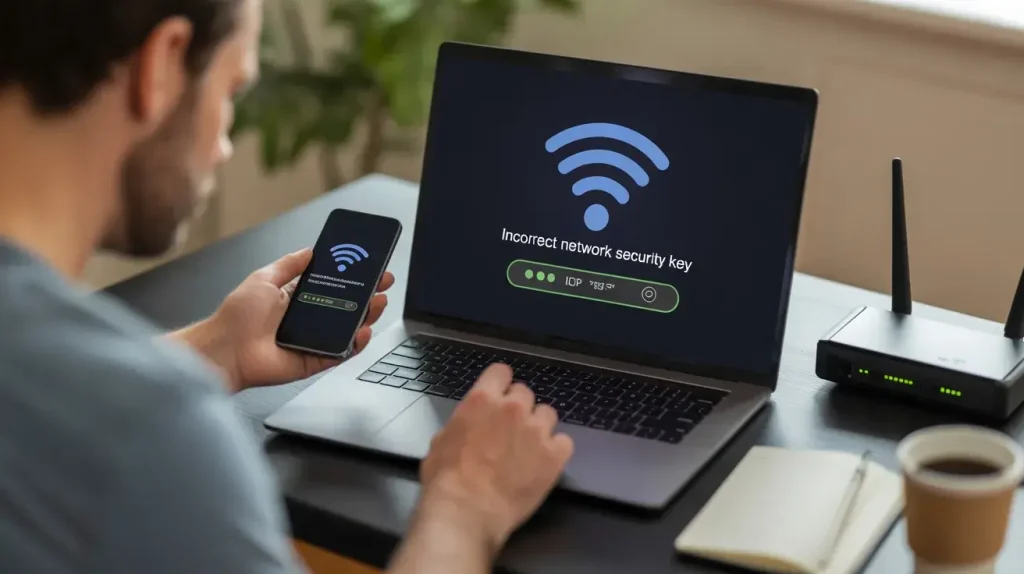
Even with the correct key, users sometimes face connection issues. Here’s how to solve common problems:
- Key Not Working: Double-check the capitalization and special characters.
- Device Not Connecting: Ensure the device supports the encryption type (WPA2/WPA3).
- Forgotten Key: Access it through router settings or device saved networks.
- Public Hotspots: Many public networks require a temporary key; always verify the source.
Using these steps, most network key issues can be quickly resolved without technical expertise.
Real-Life Case Study: Protecting a Small Business Network
A small marketing agency in my city once experienced repeated connectivity drops and slow internet. They discovered an unknown device repeatedly joining their hotspot.
What Happened?
- Employees used a default network key that was easy to guess.
- Sensitive client data was at risk.
Action Taken
- The IT team created a strong WPA3 network security key.
- A guest network was set up for visitors.
- All devices were updated and old keys removed.
Result
Unauthorized access stopped immediately, internet speed improved, and sensitive client information remained secure.
This case highlights why even small businesses must prioritize network key security.
Conclusion
A network security key is a simple but powerful tool that protects your Wi-Fi, hotspots, and connected devices. From encryption to access control, it ensures your network remains private and secure, even as machines are learning and evolving in today’s digital landscape.
By following best practices—strong keys, regular updates, and proper sharing—you can significantly reduce the risk of unauthorized access. Whether at home, in a small office, or managing multiple IoT devices, understanding and using your network key correctly is essential in today’s digital world.
FAQ’s:
Where do I find the network security key?
Check your router settings, device Wi-Fi properties, or hotspot settings to locate your network security key quickly.
Why is my laptop asking for a network security key?
Your laptop needs the correct key to connect to a secured Wi-Fi or hotspot; enter the correct network security key to gain access.
What is the 192.168 1.1 username and password for Wi-Fi?
The 192.168.1.1 login is for your router admin panel; default credentials are usually on the router sticker or manual.
What is a network security key on a PC?
It’s the password or encryption key that allows your PC to securely connect to a Wi-Fi network or hotspot.

David French is an avid tech enthusiast. He loves to read about new innovations and technologies as well as share his thoughts on what he finds. He has a degree in English from the University of South Florida, but spends most of his time writing about technology rather than reading literature.